Available exclusively on the App StoreOne-time purchaseRule-based routingImport existing configurations

Shadowrocket features and settings

First, distinguish connection methods, routing modes, and rule files. They answer different questions: which server to use, how requests are handled, and what conditions requests match.

Global Routing: Choose how traffic is handled

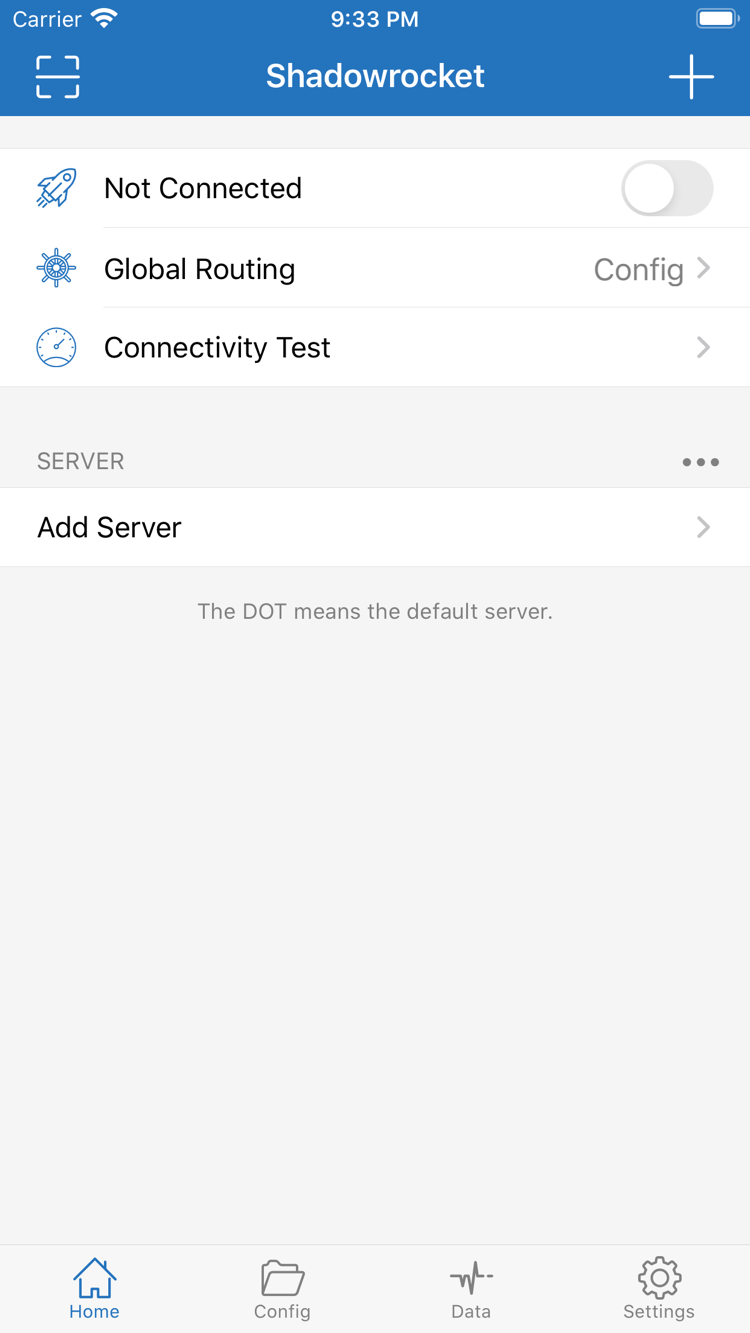
Open Global Routing from Home to choose Config, Proxy, or Direct. Config processes requests according to the rules in the currently enabled configuration; Proxy routes requests through a proxy; Direct connects directly. When setting up for the first time, confirm that your server works before choosing a mode. For rule-based routing, select Config and check which configuration file is active. Choosing a mode does not fill in server details or confirm that an existing subscription is valid. Troubleshoot connection and rule issues separately.

Global Routing
Config / Proxy / Direct
See how to choose a routing mode →

Data and Diagnostics: Use them to troubleshoot

Traffic statistics in Data can help you observe request activity, but changing traffic totals do not prove that a page loaded successfully. Review Diagnostics and connection logs alongside the time of the issue, the network in use, the selected server, and the routing mode. When documenting a problem, keep the error type visible but hide server credentials. Test one condition at a time before changing the configuration. Avoid changing the server, rules, and network all at once; otherwise, it is hard to tell what affected the result.

First connection · A three-step overview

Import an existing configuration and test the connection

Prepare your own subscription or server details, then follow the steps: import, choose a mode, and test. Purchasing the app and obtaining connection details are separate steps; you still need a usable configuration after purchase.

01 / Add Server

Add a server or an existing subscription

Open Home and use Add Server to add an existing server. If you have a subscription link, import it with Subscribe. Before entering details manually, check the protocol specified in your server information, then fill in Host, Port, and the authentication fields. Before using Scan QR Code, make sure the code comes from your own configuration; a payment receipt or App Store listing is not connection information.

After saving, check that the expected item appears in the list. Its name is only a label for identification; it does not confirm that the address, port, or key is correct. If importing fails, check the original information for completeness rather than repeatedly adding duplicate entries.

02 / Global Routing

Choose a mode and active configuration

Select the server you want to use, then check Global Routing. For rule-based routing, choose Config and confirm in Config which file is active. Proxy and Direct help illustrate different request paths, but do not switch between them repeatedly without understanding their purpose or mistake a mode change for a server fix.

Policy names in the configuration must match their actual purpose. Before copying rules, understand their matching conditions and check whether broad rules override later entries. Keep the configuration simple at first; add rules gradually after the connection works.

03 / Connectivity Test

Enable the connection and test requests

Run Connectivity Test first, then turn on the connection switch at the top of Home. The first time iOS asks to add a VPN configuration, check the app name and confirm as prompted. This authorization sets up a network connection on your device; it does not include a connection service or confirm that server authentication succeeded.

Once connected, open a page you need to access and check that it works. Test results, the system’s connection indicator, and whether a page is available are separate signals. If something fails, note the error and check the network, server details, system time, and routing mode in that order. Change one thing at a time.

For initial troubleshooting, note the network in use, server protocol, Global Routing selection, and the step where the error occurs. If the test passes but a page behaves unexpectedly, check the rules and domain resolution. If the test itself fails, start by checking your server details and network connectivity rather than rewriting the entire ruleset.

View the full guide →
Verify the app · What your purchase includes

Shadowrocket purchase and App Store details

Shadowrocket is closed-source commercial software. Verify the genuine app on its App Store product page; do not rely on search result titles, similar-looking icons, or shortened names in guides as proof of authenticity.

Check the official icon and developer
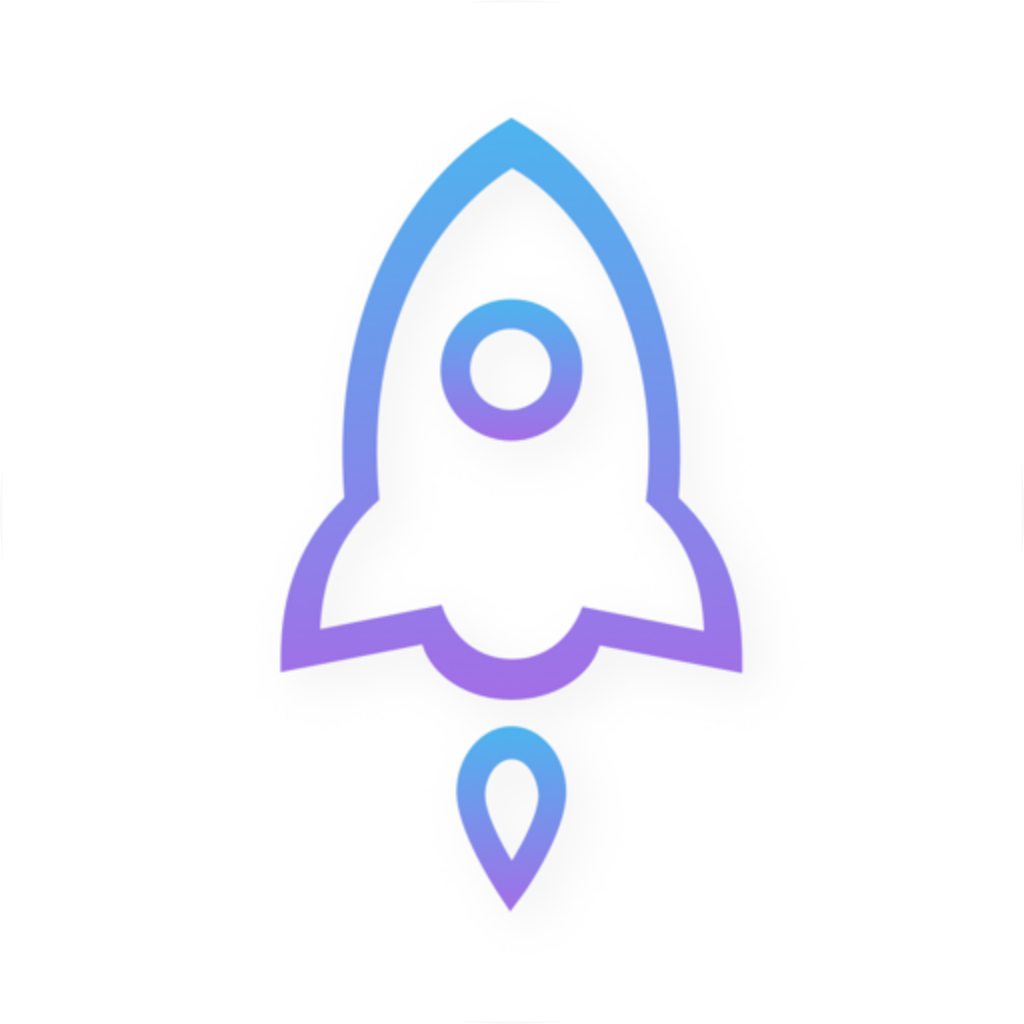
Official Shadowrocket icon: rocket with a blue-purple outline on a white background

Shadow Launch Technology Limited
App ID: 932747118

Open the product page and compare its app icon with the official icon shown here, then check the developer name. Finally, verify that the product page URL contains id932747118. All three details should match. Do not purchase based only on a name that includes Shadowrocket. If you open the page from search results, view the full product details rather than relying on truncated text in the results list.

What the one-time purchase covers

The US store price is about $2.99 for a one-time app purchase. Prices are shown in each storefront’s local currency; check the amount displayed by the App Store before paying. Your purchase record confirms your eligibility to get the app. It does not confirm that an existing server or subscription is valid; these are separate things.

The app purchase does not include a connection plan. This site does not provide, sell, or recommend servers or subscriptions. Import and troubleshooting instructions assume that you already have your own subscription or server details. You will still need your own connection information after purchasing the app.

App Store availability and account region

If you cannot find the app, first check which storefront is associated with the Apple ID you use for the App Store. Then use the product page linked on this site to check availability. The storefront path in a web link does not mean your device has switched to that storefront. The page opened on your device is the source for current purchase availability and pricing.

Also check device compatibility, system requirements, purchase restrictions, and network status. Do not assume the app is unavailable just because it does not appear in search results. For the steps to check your account and storefront, see the installation guide.

Restore purchases and set up a new device

You can use the purchase record for the same Apple ID to get the app on iPhone and iPad. When changing devices or reinstalling, first make sure the App Store is signed in with the account used for the purchase, then look for Shadowrocket in your purchases or purchase history. If the page still asks you to pay, check the account and purchase record before buying again.

Redownloading the app and restoring server configurations are separate steps. After installing on a new device, check that local files, synced content, and connection authorization are all in place. Check the App Store listing and your current Family Sharing settings to see whether sharing applies and what conditions are required.

Updates and keeping your configurations

Manage app updates through the App Store. You can enable automatic updates in your device settings or check the store for available updates. Before updating, keep your configuration files and essential server details safe, especially if you plan to change devices, reinstall the app, or edit a lengthy ruleset.

If behavior changes after an update, first check the selected server, Global Routing, and Config, then review the relevant in-app settings. This site does not list specific version numbers or system requirements; refer to the App Store listing for system requirements and the app’s current interface for operating instructions.

Configuration details and privacy

Subscription URLs, passwords, and private keys are connection credentials. Keep them out of public screenshots, article comments, and unredacted logs. Troubleshooting usually requires only the protocol, error message, sequence of events, and network conditions. Before sharing logs, check for authentication details.

This is Shadowrocket’s official website and manual, covering how to get the genuine app and use your existing configurations. App purchases, account records, and payment confirmation are handled in the App Store. Reading a guide does not replace confirming payment in the store or checking the status of your own server.